
Digital Wallet Terms of Use
The Emily Carr OneCard is the University’s official identification and your photo must meet the listed guidelines. We reserve the right to refuse any photo deemed inappropriate. By submitting this photo for your student ID you agree this photo may be used by Student Records, Human Resources and/or Facilities.
The OneCard is the official Identification card of the University and is managed by Emily Carr Univeristy. The OneCard is the property of Emily Carr University and its use is governed by the University's regulations and policies.
The digital photo image that you submit via this website will be used to produce your OneCard. Card. The OneCard is proof of identity and provides access to facilities. Access is granted to various rooms and resources on campus using your OneCard, including Student access to classrooms, studios, the library, campus printing services, and A/V equipment checkout. In addition to being your campus ID, your ECU OneCard can also be used for adding funds online to your ECU digital wallet and pay for campus printing services or other sercvices.
By submitting this photo for your student ID you agree this photo may be used by Student Records, Human Resources and/or Facilities.
If you have any questions please contact the appropriate office:
Credit Students: onecard@ecuad.ca
Continuing Studies Students: csreghelp@ecuad.ca
Staff/Faculty: fclerk@ecuad.ca
Emily Carr University does not guarantee uninterrupted or secure access to the Photo Upload System. We reserve the right to suspend use or access to this system.
Emily Carr OneCards are property of Emily Carr University. Lost cards must be reported to either Student Services or Facilities. The card holder is responsible for the cost of a replacement card. Please do not lend your card to anyone for any purpose. Tampering of or defacing your OneCard will invalidate your card.
How to upload OneCard Photo
-
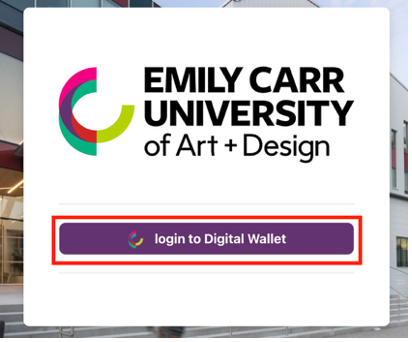
Go to https://digitalwallet.ecuad.ca/ and select Login. Sign in using your Microsoft 365 (M365) email account. If you experience any issues signing in, submit an IT support ticket.
-
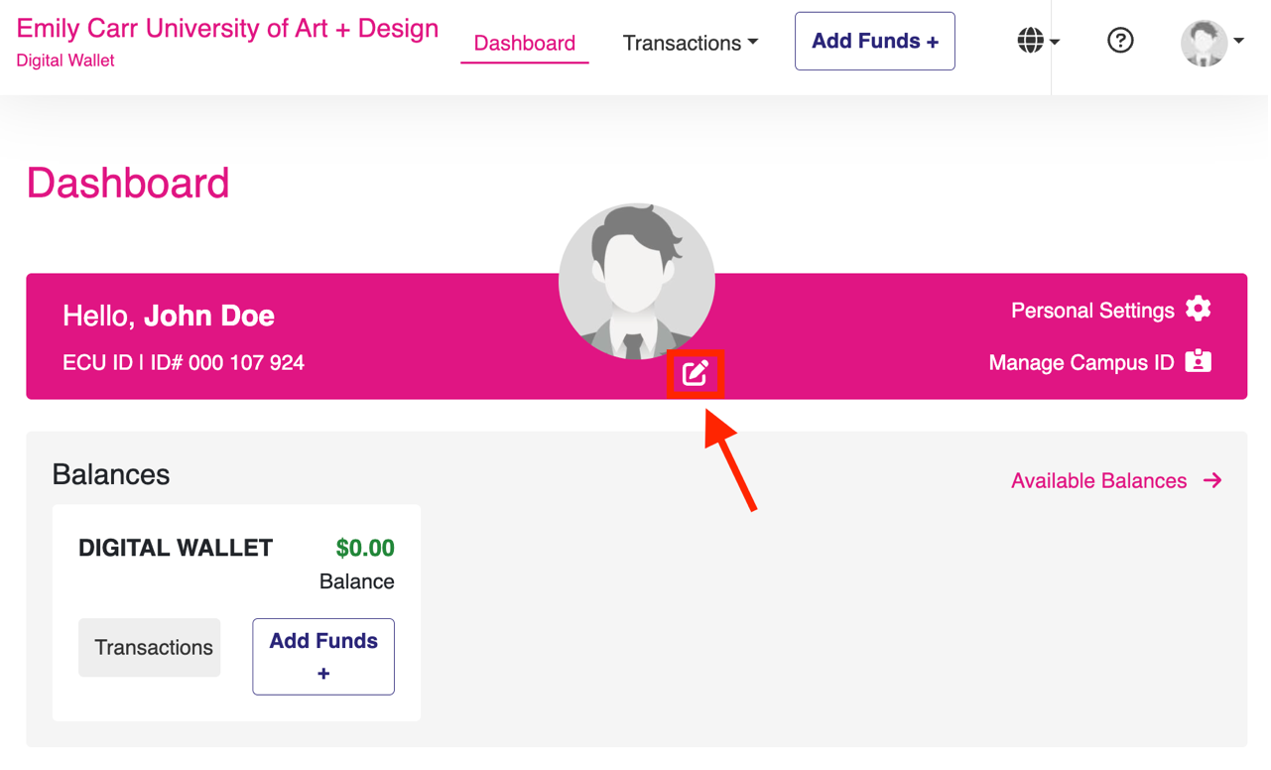
After signing in, click the pencil icon located below your current photo.
-
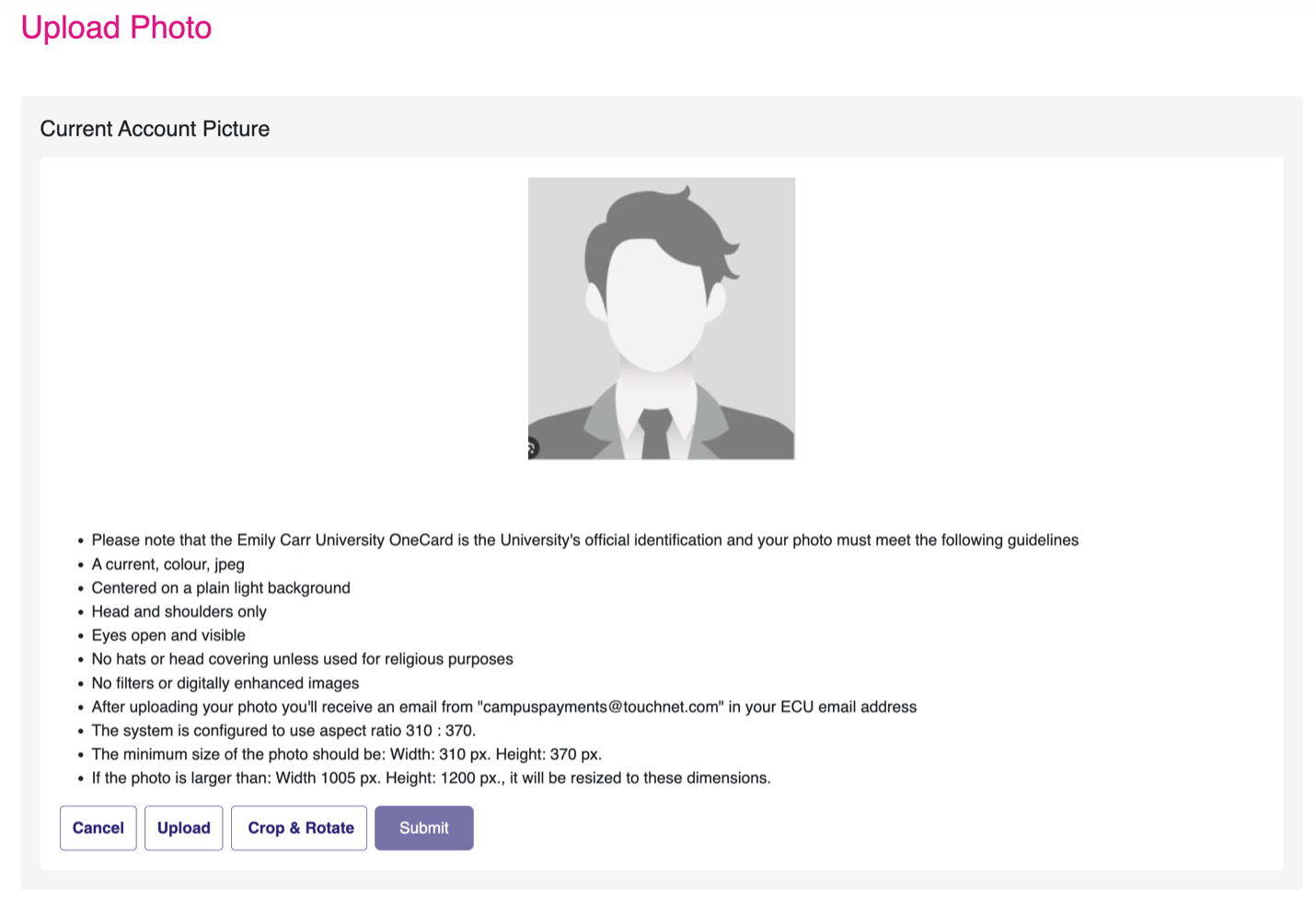
Review the photo requirements
-
Choose one of the following options:
- Upload – Select a new photo from your device.
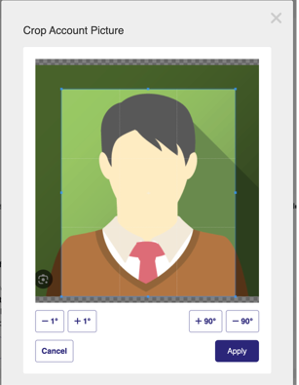
- Crop & Rotate – Adjust the image to the correct orientation and framing.
- Cancel – Cancel the upload.
- Submit – Submit your photo for review once you are satisfied.
-
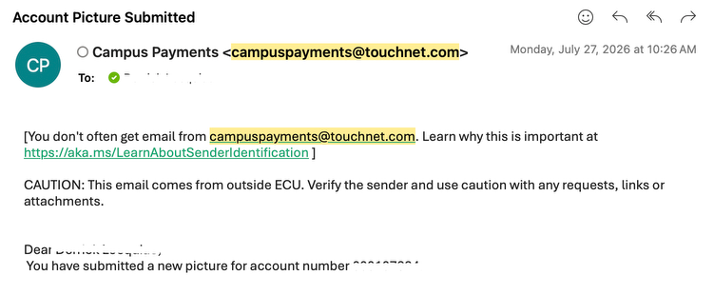
After submitting your photo, a confirmation message will appear at the top of the page. You will also receive a confirmation email from campuspayments@touchnet.com

-
An Emily Carr staff member will review your submission. You will receive an email notifying you whether your photo has been approved or rejected. If approved, the photo will appear in your Digital Wallet. If rejected, you will need to upload a new photo that meets the requirements.
If you have any additional questions regarding your photo upload or printing, please contact the appropriate office:
Credit Students: onecard@ecuad.ca
Continuing Studies Students: csonecard@ecuad.ca
Staff/Faculty: fclerk@ecuad.ca